You're sitting in front of a computer that should be simple enough, but the screen, the mouse, and the folders all feel like separate puzzles. That moment shows up in offices, schools, libraries, and community centers every day. A new hire needs to log in, a parent needs to finish an online form, or a small business owner needs to send a document without asking for help again.
That's why basic computer classes still matter. Computers moved from a niche school tool to standard infrastructure, and the change was fast enough that many adults learned by trial and error instead of structured instruction. In the early 1980s, only 13% of U.S. public high schools used computers for instruction, and by 2009, 93% of U.S. public schools had computers with internet access in the classroom, which helps explain why digital literacy became expected rather than optional (Computers in the classroom). Households changed too, with U.S. computer ownership rising from 8% in 1984 to 89% in 2016, so the need for confidence at the keyboard moved from school to home and then to the workplace (Census Bureau ACS report).
A practical class matters because access alone doesn't create independence. People still need clear practice with login screens, file folders, web browsers, and email before they can complete everyday tasks without freezing up. That's why some community programs now connect training with broader support, including free computers for low income learners, since a lesson only sticks when people can keep using the skills after class ends.
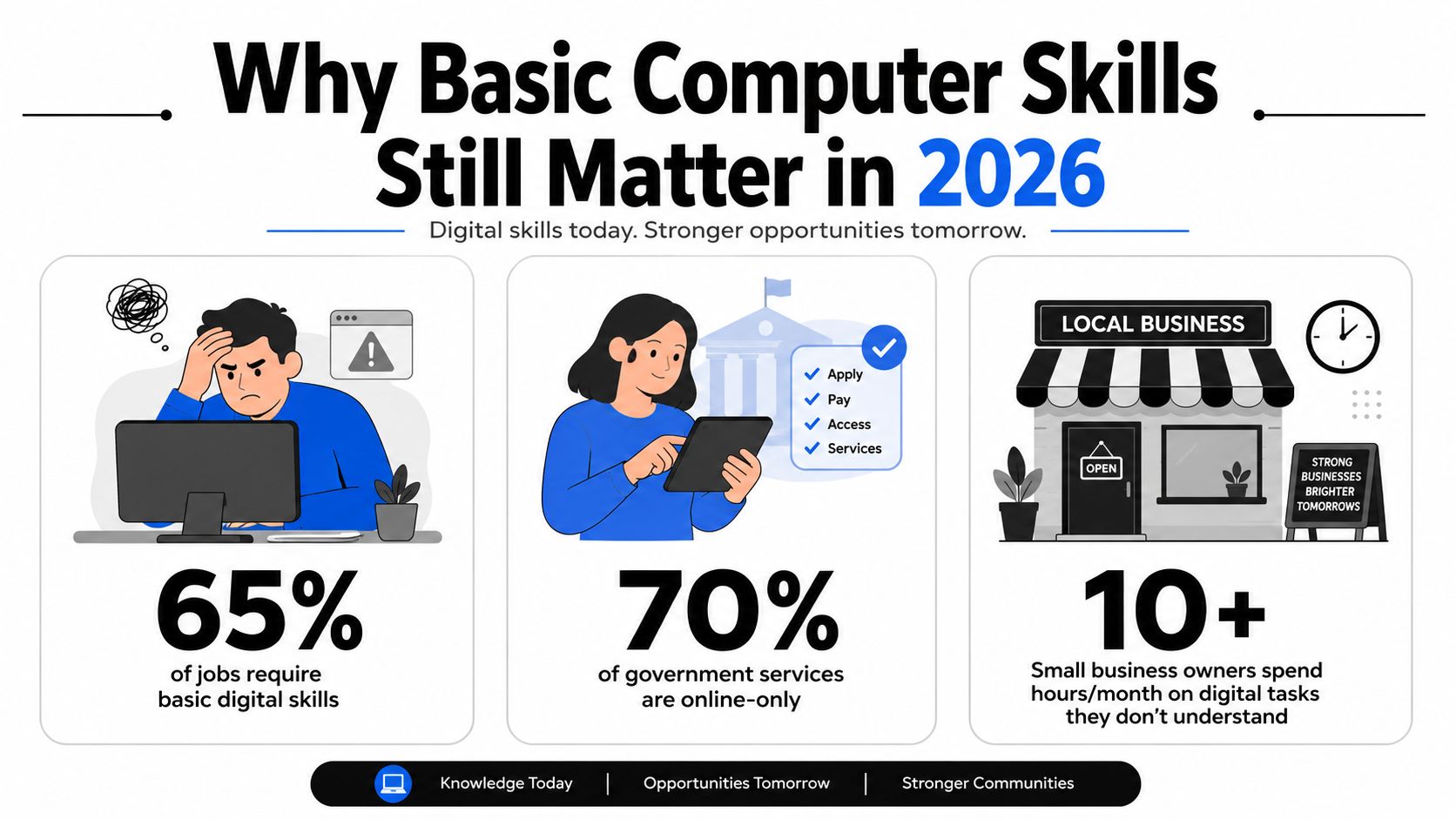
Why Basic Computer Skills Still Matter in 2026
A learner sitting in front of a computer may know the goal right away, finish a form, send a message, or find a document, yet still hesitate at the first click. That hesitation is usually not about ability. It comes from a missing bridge between watching someone else do a task and doing it alone.
Basic computer training still matters because computers are now ordinary tools for work, school, benefits, healthcare portals, and everyday communication. People are expected to move through login screens, folders, browsers, and email without help, but many first-time users never had a structured way to learn those steps. A short lesson can show where to click. A good class shows how to repeat the task later in a different setting.
Why the classroom story still repeats
A class can feel clear while the world stays messy. A learner may practice on one keyboard, then meet a different layout at a library or workplace. A saved document may vanish into the downloads folder, an attachment may not open, and a printer may ask for a password nobody mentioned. Once the setting changes, confidence can disappear quickly.
That is why basic computer skills need to be taught as task-based habits, not as isolated button names. UNESCO's glossary describes the area through file management, word processing, spreadsheets, presentations, information search, electronic communication, and social and ethical awareness online (UNESCO glossary). A learner who can click through a demo still may not know how to find yesterday's file, check whether an email attachment is safe, or tell whether the version on the screen is the one they meant to save.
Some learners also start with barriers that standard classes overlook. Low vision, limited reading confidence, a shared device at home, or a schedule that allows only short practice time can make a normal lesson hard to use later. Training works better when it connects to real needs, including access to a device, such as free computers for low income learners, and when instructors plan for practice after class instead of assuming the lesson will hold on its own.
Practical rule: If a learner can only repeat the instructor's demo, the class has not yet reached independent use.
That is also why step-by-step supports matter. Clear practice notes, screenshots, and short follow-up guides help learners repeat the same task at home or on a borrowed machine. Programs that want to scale impact with tutorials often find that these small supports do as much as the live lesson itself, because learners need reminders after the room goes quiet.
What a Basic Computer Class Covers
A first lesson often starts with a simple goal, such as opening a document, saving it, and finding it again later. That sounds small, but for a new learner it is the difference between following along and feeling lost. A useful basic computer class builds toward that kind of finished task, because adults usually come to training with a practical reason to learn, not just a general interest in computers.
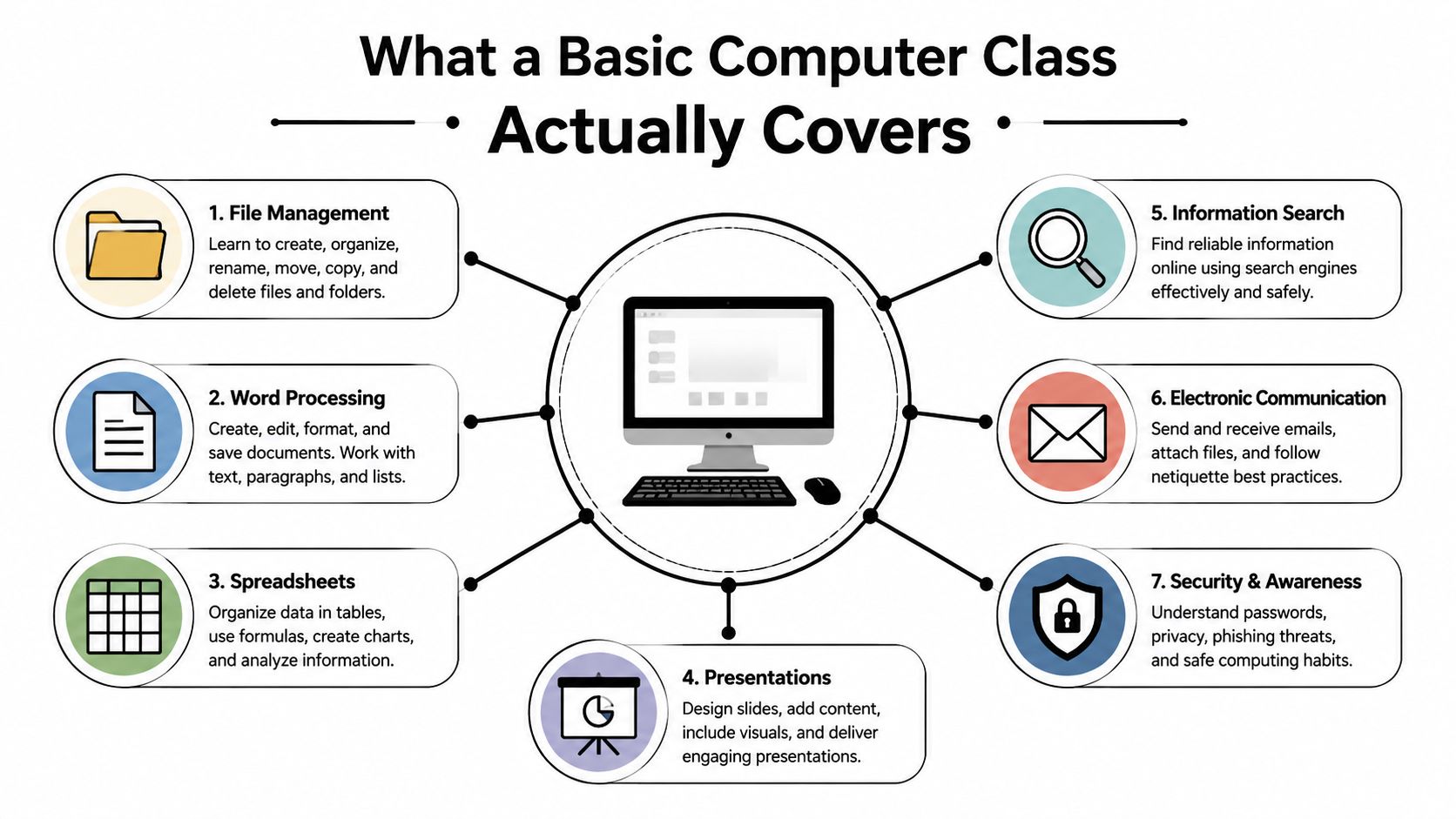
The core curriculum usually includes file management, word processing, spreadsheets, presentations, information search, electronic communication, and social and ethical awareness online. Modern workplace and community training also adds cloud tools, online safety, and checking whether information is trustworthy, because a learner who can open a document still needs to know where the saved copy lives and whether an attachment is safe to open.
The pieces that belong in the same class
A good syllabus groups skills by task, not by device. A learner might begin by opening a folder, then rename a document, then attach that document to an email, and finally confirm that the file uploaded correctly. That sequence follows real work more closely than isolated drills, and it helps people see how one action leads to the next.
The same idea applies when a class includes the right device setup for practice. A learner using a borrowed or shared machine may need access to a refurbished PC desktop before the lesson can turn into regular use at home. Training works better when the class matches the learner's actual setup, because the skill is not just completing the demo in the room, it is repeating the task later without help.
If you are building a course, it helps to focus on actions:
- Find and manage files: Learners need to create folders, rename documents, move downloads, and recover files later.
- Write and format documents: People should be able to type, save, print, and revise a simple document.
- Search the web safely: Beginners need practice spotting trustworthy pages and avoiding misleading results.
- Communicate electronically: Email, calendars, and attachments are everyday tools, not advanced topics.
Program designers who want to scale impact with tutorials usually find that short practice guides matter as much as the live lesson. The reason is simple. A learner may follow a demonstration in class and still freeze at home if the steps are not written down in plain language. Step-by-step support gives them a way to repeat the task, check their work, and build confidence through repetition.
The Hardware to Software Progression Every Learner Needs
A beginner who understands hardware usually relaxes faster. When a teacher explains that the computer has a CPU, RAM, storage, and input/output devices, the machine stops feeling mysterious and starts feeling like a set of parts with jobs to do. That mental model matters because people troubleshoot better when they know what each layer is responsible for.
The cleanest way to teach it is in order. First, the learner sees the physical pieces. Then they see the operating system, which acts like the workshop manager. After that come the applications, which are the tools sitting on the bench ready for use.
Why sequence matters
Curricula that jump straight to software leave people fragile. If a document won't open or a printer won't respond, they don't know whether the problem sits in the hardware, the operating system, or the app. A step-by-step path gives them a way to narrow the issue instead of guessing.
That's why entry-level courses usually combine hardware basics with Windows or another OS, file navigation, and application use (polytechnic syllabus). The operating system mediates how the hardware gets used, so learners need to understand that folders, settings, and peripheral devices all sit in the same workflow.
The computer isn't magic. It's a set of parts, and each part has a different job.
Peripherals beginners touch first
Peripherals are often where confidence rises or falls. A keyboard, mouse, printer, or external drive is concrete in a way a menu bar isn't. If someone can plug in a mouse, click accurately, and recognize whether a printer is connected, they're already more independent.
This is also where a practical class can reduce anxiety. Learners don't need a deep engineering lesson. They need plain language, repeated handling, and a few real tasks, such as saving a file to external storage or printing a one-page document. That kind of hands-on repetition makes the later software lessons easier to absorb.
A useful training model for organizations is to pair that hardware-to-software foundation with a refurbished PC desktop, especially when learners need a reliable practice machine. The point isn't the brand of device. The point is giving people a stable environment where they can learn without fear of breaking something important.
Building a Sample Syllabus and Lesson Plan
A class works better when the goals grow in the right order. If learners are asked to write an email before they know where files live, they'll copy steps without understanding them. A short, structured syllabus solves that by moving from device basics to everyday tasks in a sequence that makes sense.
| Sample Weekly Syllabus for a Basic Computer Class | |||
|---|---|---|---|
| Week | Topic | Learner Outcome | Assessment |
| 1 | Hardware and operating system navigation | Identify basic parts of a computer and open the desktop confidently | Learner points to CPU, keyboard, mouse, and opens a program |
| 2 | File management | Create folders, save files, and find them again later | Learner saves, renames, and reopens a practice document |
| 3 | Word processing | Type, format, and print a document | Learner writes a short letter and prints or exports it |
| 4 | Email and calendar tools | Send a message, attach a file, and read calendar items | Learner sends a complete practice email with attachment |
| 5 | Internet safety and information evaluation | Recognize safe browsing habits and check a source | Learner explains why one webpage looks more reliable than another |
| 6 | Spreadsheets basics | Enter data and understand simple rows and columns | Learner enters sample information into a worksheet |
| 7 | Cloud storage and collaboration | Upload, share, and access a file from another device | Learner shares a file link or opens a saved cloud document |
A seven-week plan is long enough to build habit, but short enough to stay realistic for adult learners. The key is not covering everything at once. The key is making sure each week leaves behind one usable skill that the learner can repeat at home, at work, or at the library.
For organizations looking to build their own curriculum, educational resources can support the planning process by giving staff a place to gather materials, examples, and follow-up ideas. A lesson plan does its best work when it points toward a real task, not just a classroom exercise.
Choosing the Right Delivery Method
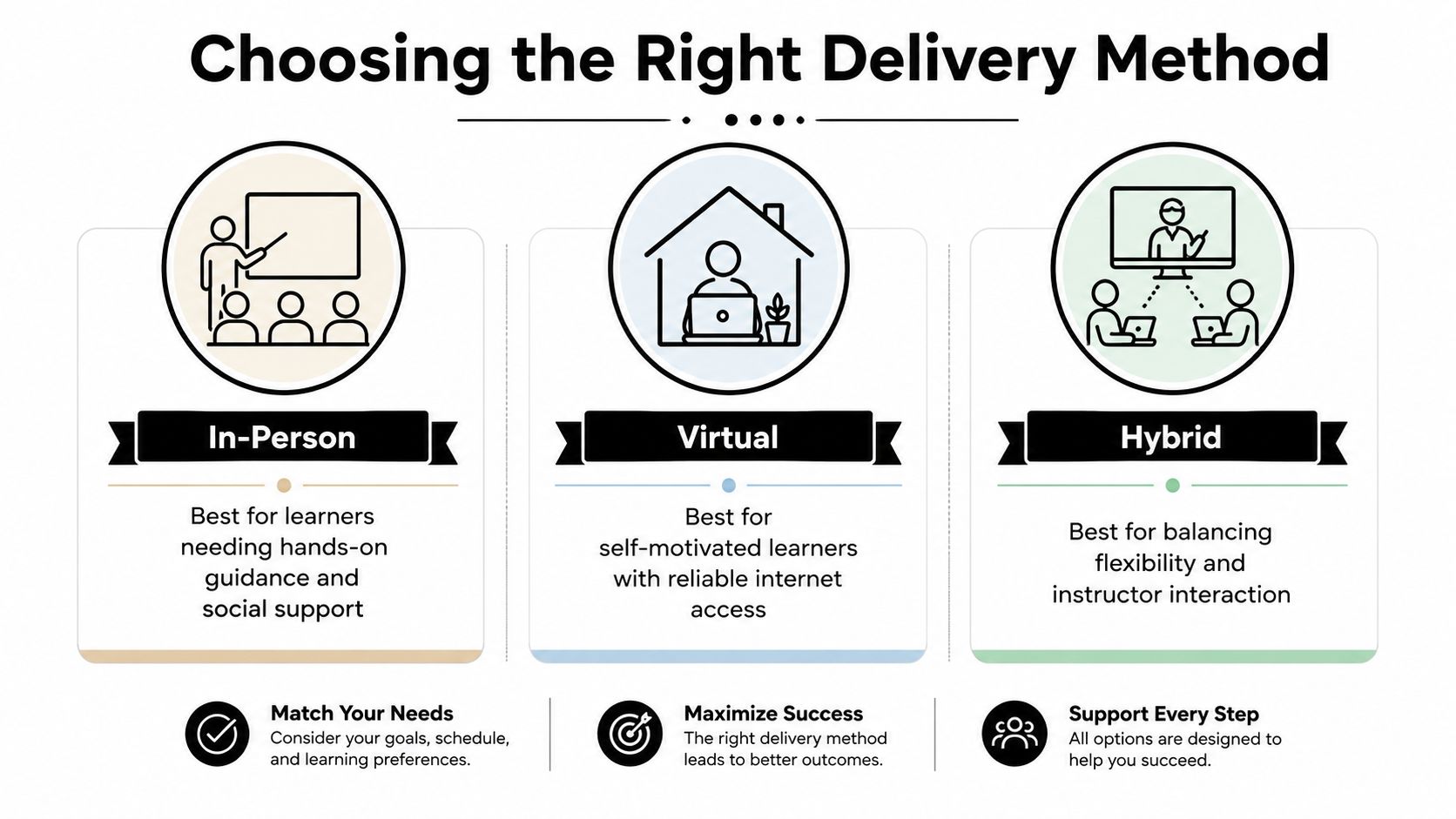
Some learners do best with a teacher sitting beside them. Others want the flexibility of joining from home. The right format depends on confidence, access, and the amount of hands-on support the group needs.
In-person classes
In-person training works especially well for adults with low confidence, limited prior exposure, or accessibility needs that benefit from direct support. An instructor can point to the screen, slow down for a learner who gets stuck, and notice when someone has stopped following along. That kind of room-level awareness is hard to replace.
Virtual classes
Virtual classes fit learners who already have a device, reliable home internet, and enough confidence to manage basic troubleshooting. They also work well when recordings are available for review, because many beginners need to replay a step more than once before it makes sense. A home-based format can be practical, but only when the learner can participate without fighting the setup first.
Hybrid classes
Hybrid programs can reach more people, but they need deliberate design. Remote learners shouldn't feel like spectators while the room receives all the attention. Clear camera placement, shared materials, and consistent check-ins help keep the experience fair across formats.
For training teams using tutoring center software, the main question is whether the platform supports the learner's pace instead of just the instructor's schedule. The format should match the people in the class, not the other way around.
Decision test: If the learner can't see, hear, or repeat the steps comfortably, the delivery model needs adjustment.
Bridging the Gap Between Class and Independent Use
The biggest failure in beginner training usually happens after the room empties. Learners may have followed every step in class, but then they go home, open a different screen, and can't recreate the process alone. That's where confidence drops, and that's where a class needs a better handoff.
A Canada Learning Code report found that underserved learners still identified basic skills as a current learning need, and they also wanted help with hardware, software, digital connectivity, and cybersecurity, which shows the gap isn't only about exposure. The same report points to lack of hardware, software, and internet access as common barriers, so practice time outside class can be limited or nonexistent (report).
What people still struggle with
The most common sticking points are practical. Learners may be able to type in class, yet still hesitate when they need to create, save, download, move, or find a file later. They may understand the idea of cybersecurity, but miss the warning signs in a real phishing email or while using shared Wi-Fi.
A class closes that gap when it builds support around the lesson:
- Take-home practice cards: Short reminders with screenshots or simple words help learners repeat the exact steps later.
- Follow-up office hours: A small extra help session can catch problems before they become permanent habits.
- Loaner devices or tech hubs: Practice matters more when learners have something to use between classes.
- Low-pressure pacing: Adults who feel embarrassed often need time, not more information.
A Chicago public resource page shows how basic computer help is often paired with job readiness, resume support, and assistive resources, which reflects the shape of learner needs in public settings (Chicago Public Library adult learning resources). That kind of bundling makes sense because digital independence usually sits alongside broader life tasks, not apart from them.
The goal is simple. Learners should leave class able to use a computer without needing the instructor to stand next to them every time. If they can repeat the task once, then again a week later, the class has done its job.
Connecting Training to Data Security and End of Life Device Policies
A learner who can open folders, spot download prompts, read browser warnings, and handle sign-in screens is less likely to make a costly mistake on a shared computer or at work. Those same habits also shape how carefully someone treats an old laptop, tablet, or desktop when it is time to retire it.
That connection matters because outdated devices can still hold sensitive information. A computer does not stop containing data just because it no longer feels current. If staff know where files live, what gets saved locally, and what should be removed before a device leaves service, they are less likely to leave equipment in a storage closet and hope the problem solves itself.
What policy needs from training
A strong device policy depends on people who can tell the difference between an active file, a downloaded copy, and material that needs to be removed before disposal. It also depends on employees who understand why careful login habits and clear file organization lower risk during everyday work. Training makes the digital environment easier to read, the same way labels on storage boxes help someone find the right item without opening every box.
That is also where a partner such as Reworx Recycling can fit into the process as one option for organizations that need equipment decommissioning, business pickups, free drop-off, and secure hard drive shredding with data destruction. The work is not only about getting hardware out of the building. It is about closing the loop responsibly, so retired devices do not become a hidden data problem. For organizations that need a policy framework, device lifecycle management helps connect daily use, storage, retirement, and reuse into one process.
Organizations that also need a dedicated process for data removal can use secure data destruction services to make sure retired equipment is handled before it leaves circulation. When training, security, and disposal line up, staff have a clearer path from first login to final wipe.
Policy check: If employees cannot explain where company data lives, they cannot reliably protect it at the end of a device's life.
Building a Complete Digital Readiness Program
A practical digital readiness program has four parts. It starts with a curriculum that teaches real tasks, moves through a delivery method matched to the learner, adds support after class, and ends with responsible device retirement. That structure works for schools, community centers, and businesses because it treats digital confidence as a process, not a one-day event.
The checklist is straightforward:
- Curriculum: Teach file management, email, internet safety, and document handling in the order people use them.
- Delivery: Choose in-person, virtual, or hybrid based on learner access and confidence.
- Support: Offer practice sheets, office hours, and access to a device when possible.
- End of life handling: Route retired equipment through a secure and documented process.
That last step is where many organizations stop too early. A device that has served its job well still needs to be retired carefully, and training staff to use computers well should sit alongside training them to hand technology off responsibly. When both pieces work together, digital inclusion and environmental stewardship move in the same direction.
For teams planning their next quarter, Reworx Recycling can help with responsible equipment retirement through secure collection and recycling services tied to community impact. If your business is ready to donate old equipment, schedule a pickup, or build a better retirement process for laptops and desktops, visit Reworx Recycling and start the conversation.
Reworx Recycling helps organizations retire old computers responsibly while supporting digital inclusion and workforce development through donation-based electronics recycling. If your team is planning a classroom refresh, an office cleanout, or a secure device retirement project, visit Reworx Recycling to schedule a pickup or discuss a donation path for usable equipment.