
Your team probably has at least three kinds of laptop users right now. Some sit in the office all day and expect a fast, stable connection. Some split time between home and headquarters. Others live on the road, opening a ThinkPad, MacBook, or Dell Latitude wherever they can get signal and trying to join a meeting without freezing halfway through a sentence.
That mix changes how you should think about internet for laptop computers. It's not just a utility line item. It affects billable time, meeting quality, support workload, security exposure, and how long your laptop fleet stays useful before replacement. In most small and midsize businesses, connectivity problems don't show up as one dramatic outage. They show up as dropped calls, stalled uploads, shadow IT, and employees using unsafe workarounds.
A practical laptop connectivity plan has to cover the whole lifecycle. You need the right office network, a sane mobile option, a security baseline, support processes that reduce noise, and a retirement plan for the laptops and network gear you eventually replace.
Equipping Your Modern Workforce for Connectivity
Most IT managers already know the laptop is the primary work endpoint. The numbers confirm it. The U.S. Census Bureau reported that 95% of U.S. households had at least one computer and 90% had a broadband subscription in 2021, and it also found that household computer access was a stronger predictor of beneficial internet use than smartphone access, which reinforces the laptop's central role in real work tasks such as job searches and eHealth according to the Census Bureau's 2021 computer and internet use release.
For business leaders, that matters because work doesn't happen on connectivity alone. It happens when employees have a usable device, a dependable connection, and a setup that fits the job. A sales rep on hotel Wi-Fi, an accountant syncing cloud files from home, and a designer pushing large assets to shared storage don't need the same internet setup, even if they all use laptops.
What a business actually needs from laptop connectivity
A useful standard starts with four questions:
- Where is the employee working most often. Office, home, client site, vehicle, warehouse, or public space.
- What applications fail badly on poor connections. Video meetings, cloud ERP, remote desktop, large file transfers, browser-based line-of-business tools.
- What data is exposed if they use the wrong network. Customer records, HR data, contracts, payment information, health or legal files.
- Who owns support responsibility. Internal IT, managed service provider, telecom vendor, or the employee.
That framework keeps you from making the common mistake of treating all internet for laptop computers as interchangeable.
Practical rule: Standardize by job role, not by device model alone.
Device choice still shapes internet quality
Laptop connectivity isn't only about the service provider. Antenna design, Wi-Fi generation, battery condition, operating system health, and docking habits all affect the user experience. A well-managed refurbished laptop can outperform a newer but poorly configured one, which is why buyers comparing fleet refresh options often review resources on buying a refurbished laptop before locking in procurement standards.
The same logic applies to mobile fallback devices. In some teams, a managed secondary phone is part of the continuity plan, and procurement teams sometimes look at reliable secondary-market options like refurbished Apple iPhones when they need tethering-capable devices without paying flagship pricing.
A good connectivity policy doesn't chase the fastest possible setup for everyone. It gives each role a connection that is stable enough, secure enough, and supportable enough to do the work without friction.
The Foundation Wired and Wireless Office Networks
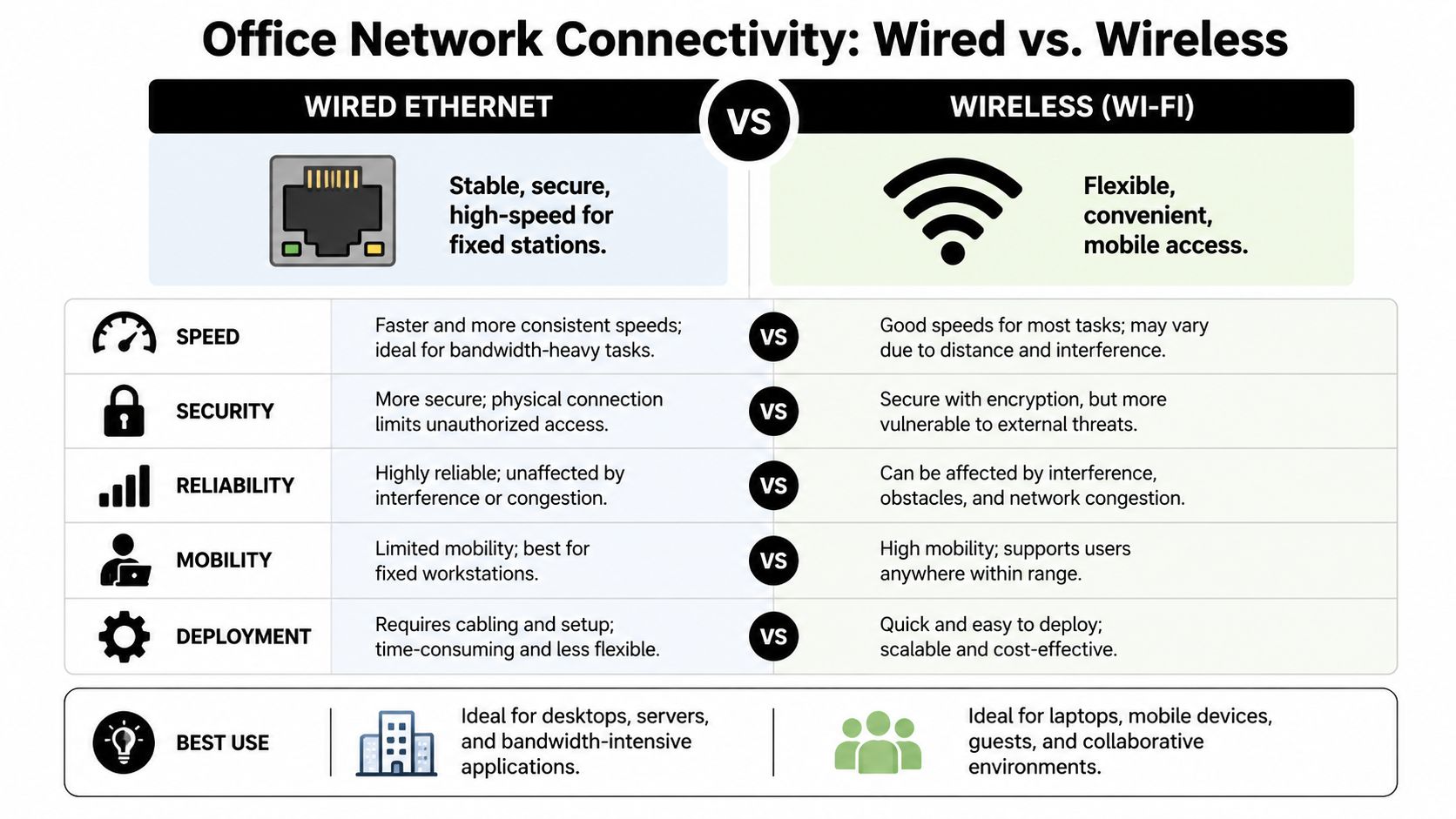
In an office, the best answer usually isn't Ethernet or Wi-Fi. It's both, used on purpose. Fixed desks, conference rooms, executive spaces, and shared collaboration areas all put different demands on the network.
Ethernet still wins for consistency. If an employee spends most of the day at one desk using VoIP, large cloud apps, virtual desktops, or constant file sync, a wired dock removes a lot of variables. You avoid weak signals, interference from neighboring suites, and the random performance swings that generate support tickets.
Wi-Fi wins for flexibility. Hot desks, shared spaces, meeting rooms, warehouses, and hybrid office layouts work better when users can move without losing access. For many companies, Wi-Fi is the default access layer and Ethernet is the performance layer for fixed roles.
Where Ethernet still earns its keep
Use wired connections for the people who complain the loudest when latency spikes, because their work usually depends on it.
| Connection type | Best fit | Main strength | Main drawback |
|---|---|---|---|
| Wired Ethernet | Fixed desks, finance, engineering, upload-heavy users | Stability and predictable performance | Less flexible workspace design |
| Wireless Wi-Fi | Hybrid seating, conference rooms, visitor areas | Mobility and easier deployment | More sensitive to crowding and interference |
Wired doesn't have to mean cabling every seat in the building. In many offices, the smarter design is selective wiring. Give hard lines to reception, shared workstations, conferencing equipment, and high-dependence roles. Let everyone else use well-planned Wi-Fi.
Why Wi-Fi 6 matters in busy offices
The quality of office Wi-Fi depends less on the marketing label on the router and more on how it behaves when the office is full. For crowded environments, Wi-Fi 6 / 802.11ax is the meaningful upgrade because dual-band 2.4/5.0 GHz support, lower latency, and better high-density performance improve real-world browsing, video meetings, and file sync reliability, as reflected in institutional computer specification guidance from MSTC.
That's the practical business case. A modern office doesn't just have laptops on the network. It has phones, conference bars, printers, guest devices, security gear, and whatever employees bring in. As density rises, older Wi-Fi standards get messy fast.
If your conference rooms work only when half the office is absent, the problem usually isn't user behavior. It's network design.
A proper rollout also means access point placement, channel planning, and separating corporate, guest, and device traffic. Companies that need help with design or relocation projects often end up needing broader wireless network installation support rather than another round of consumer-grade hardware swaps.
Internet on the Go Mobile and Cellular Solutions
Mobile connectivity gets oversimplified. People often say, “Just hotspot your phone,” as if every traveling employee has the same data needs, battery tolerance, and security posture. They don't.
For a mobile workforce, there are three realistic options. Smartphone tethering, dedicated hotspot devices, and laptops with built-in cellular radios. Each one solves a different problem.

Smartphone tethering
This is the fastest option to deploy because employees already carry the hardware. It works well for occasional travel, emergency backup, and short sessions where someone needs to get through email, CRM updates, or a quick video call.
The downside is management. Battery drain is real. Employees disable it when they forget. Plan ownership gets murky when personal and business use mix. Support gets worse if some staff use company-issued phones and others don't.
Dedicated hotspot devices
A standalone hotspot is easier to standardize. IT can assign one per traveler, team, or vehicle and treat it like any other managed asset. It also separates laptop traffic from the employee's personal phone.
Dedicated hotspots make sense for field teams, project managers moving between sites, and staff who need reliable internet for laptop computers but don't need a premium laptop with integrated cellular hardware. They do add another device to inventory, another charger to lose, and another plan to track.
Laptops with built-in cellular
Integrated cellular is the cleanest user experience. Open the lid, connect, work. There's no pairing step and no dependency on whether the employee remembered a hotspot.
This is usually the right fit for senior staff, constant travelers, or remote workers who need resilient backup access. The trade-off is procurement complexity. You have to standardize carrier support, activation workflow, and replacement planning up front.
Match the option to the role
A simple business matrix works well:
- Occasional traveler: Phone tethering is usually enough.
- Field or site-based staff: Dedicated hotspot is easier to manage.
- Heavy traveler or continuity-critical role: Built-in cellular is worth the premium.
- Home user with unstable service: Mobile backup can reduce downtime, but it shouldn't replace a proper home setup long term.
Public programs have started treating connectivity this same way. They pair devices with access instead of pretending one without the other solves the problem. For example, Maryland announced a $27.2 million investment supporting more than 133,000 laptops for underserved households, showing how organizations increasingly connect device access and internet access as one deployment issue in the state announcement on device investment and internet access.
Businesses can borrow that thinking. Don't issue laptops in isolation. Bundle the device, the connectivity method, and the support path. If you're evaluating carrier plans, hardware provisioning, or business voice and data alignment, broader telecom service planning often matters as much as the laptop itself.
Securing Your Business Laptops and Network
Every new way a laptop gets online creates another place where mistakes can happen. Office Wi-Fi, home routers, public networks, hotspots, and secondary devices all widen the attack surface.
That risk isn't theoretical. The National Telecommunications and Information Administration reported that 52% of Americans used two or more internet-connected devices in 2013, up from 41% in 2011, showing how quickly the multi-device model became normal in the usage trend summary published by PC Liquidations. For business IT, that means one employee often brings multiple network paths and multiple risk points into the workday.
The baseline controls that shouldn't be optional
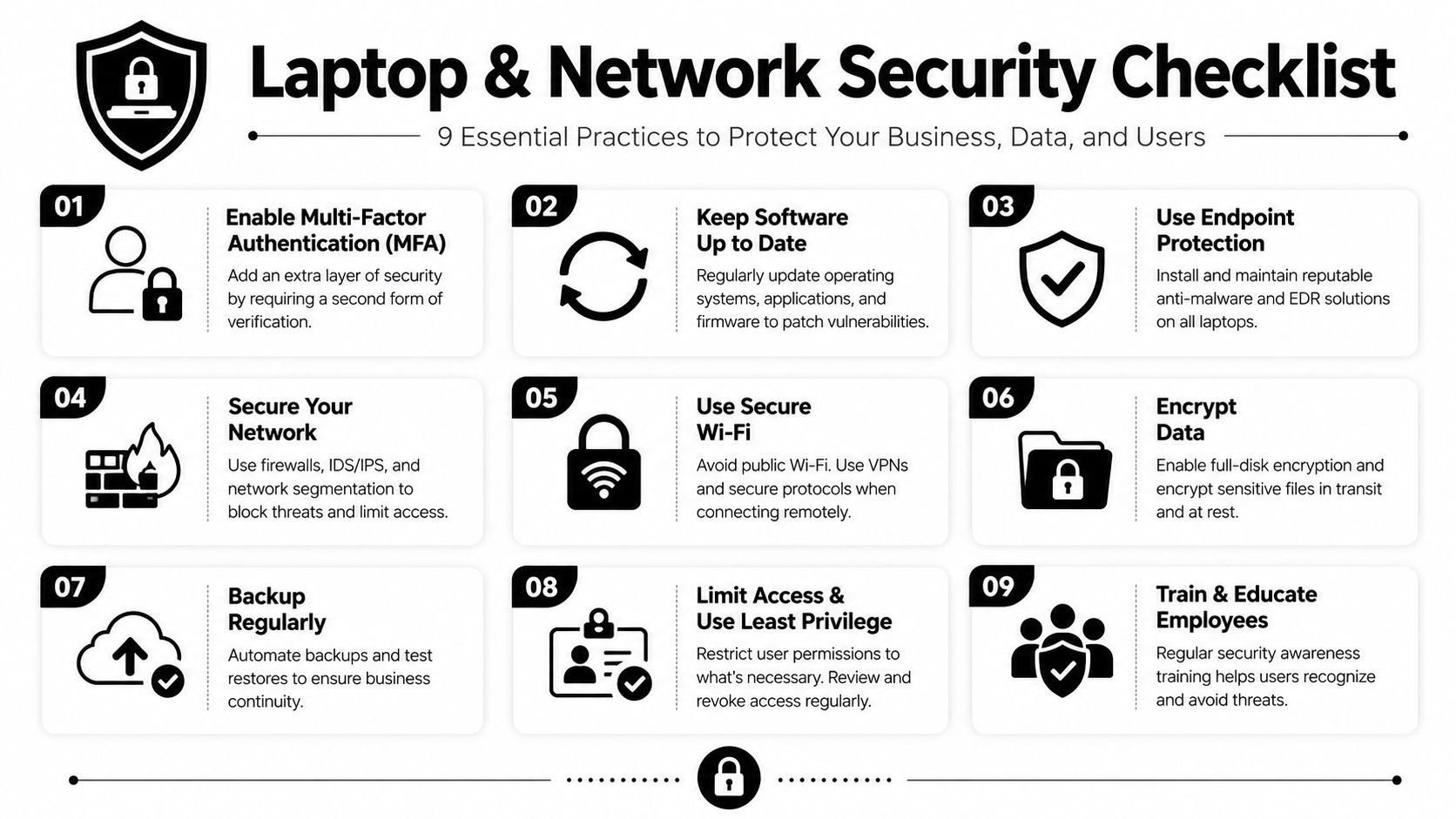
Most SMBs don't need exotic security architecture first. They need discipline on the basics.
- Use a VPN on untrusted networks. Public Wi-Fi in hotels, airports, and cafes should never be treated as safe by default.
- Move office wireless security forward. If your wireless environment supports WPA3, use it.
- Segment networks. Guest devices, employee laptops, printers, and operational equipment shouldn't all sit in one flat environment.
- Harden the endpoint. Full-disk encryption, strong authentication, patching, and remote management matter as much as the connection itself.
- Control local admin rights. Many infections and accidental misconfigurations start there.
Policy matters more than good intentions
A lot of companies buy security tools, then leave edge cases to user judgment. That's where failure starts. If employees can decide ad hoc whether to use personal hotspots, public Wi-Fi, home printers, or unsanctioned file-sharing apps, your written policy is too loose.
A better model is role-based policy with preset exceptions. Executives, finance users, field technicians, and contractors may need different access patterns, but each should still fall inside a managed rule set.
A secure laptop is not just a well-configured device. It's a device operating on approved networks, with approved fallback paths, under a policy people can actually follow.
For globally distributed teams, region-specific guidance can also help security leaders compare operating realities, and this overview of network security practices for teams in China is a useful example of how local context can shape practical controls.
Security continues after the laptop leaves service
Retired laptops, failed SSDs, old hotspots, replaced access points, and decommissioned switches still hold risk. Credentials may be cached. Configurations may be stored. Local files may remain recoverable long after the device leaves the user's desk.
That's why end-of-life handling belongs inside the same security program as MFA and VPN policy. If your business replaces laptops on a schedule, you also need a documented process for secure data destruction services before those assets are resold, donated, or recycled.
Comparing Costs and Managing Service Contracts
Connectivity costs go sideways when companies budget only for the monthly internet bill. Total spending encompasses circuits, firewalls, switches, access points, hotspots, replacement adapters, warranty coverage, support time, and the cost of downtime when the chosen setup doesn't match how employees work.
The first distinction to make is capital versus operating expense. Office networking gear and cellular-capable laptops usually sit in capital budgets. Broadband contracts, mobile data plans, security subscriptions, and managed support live in operating budgets. If you separate those correctly, it becomes easier to compare options without fooling yourself.
What to evaluate beyond sticker price
When reviewing service proposals, focus on these areas:
- Service reliability terms. Business internet contracts should define response expectations clearly enough that your team can escalate when service degrades.
- Bandwidth fit. Buy for actual workload patterns, not headline speeds that look good in a quote.
- Usage policies. Mobile plans, backup links, and hotspot services can become expensive if employees treat them as permanent primary connections.
- Hardware responsibility. Clarify who replaces failed routers, modems, gateways, or carrier devices.
- Exit conditions. Early termination terms, auto-renewals, and equipment return obligations deserve legal review.
A practical way to compare options
Build a simple side-by-side worksheet for each user group. Include the connection method, recurring fee, hardware required, support owner, security controls required, and failure impact if the service goes down.
For example, a fixed office accountant may justify premium wired and managed Wi-Fi because downtime interrupts core operations. A light traveler may not. A field estimator may need a more expensive but simpler mobile plan because every missed upload delays revenue.
Cheapest per month rarely means cheapest to operate.
Don't negotiate only on rate. Ask for business support paths, replacement timelines for carrier hardware, and clear language on what counts as a service issue versus an internal network issue. If the vendor can't explain the contract in operational terms, your finance team won't know what it bought until something breaks.
Troubleshooting Common Laptop Connectivity Issues
Most helpdesk tickets around internet for laptop computers fall into a few patterns. Connected but no internet. Slow Wi-Fi. Repeated drops during meetings. VPN won't reconnect after sleep. The fix is usually faster when staff follow the same order every time instead of trying random resets.
Start with the laptop
Have the user check the local basics first:
- Reboot the laptop. It's simple, but it clears temporary adapter and VPN state problems.
- Forget and rejoin the network. This helps when saved settings are stale or corrupted.
- Test another app. If the browser fails but Teams or another cloud app works, the issue may not be the whole connection.
- Disable competing paths. A laptop jumping between dock Ethernet, Wi-Fi, and VPN can behave badly.
- Check battery and power mode. Aggressive power saving can throttle wireless behavior on some devices.
Then test the network path
If the laptop still fails, move one layer outward.
- Try another device on the same network. If everything is down, it's likely a network or provider issue.
- Restart local network gear if appropriate. Home users can reboot their router. Office users should follow IT procedure, not improvise.
- Switch connection type. Move from Wi-Fi to Ethernet, or from office/home internet to hotspot, just long enough to isolate the fault.
- Check whether VPN is the blocker. If the internet works only when VPN is off, the tunnel or policy may be the problem.
Standardize the support response
If your team sees the same tickets every week, document them in a searchable internal flow. Better yet, many IT teams now build AI support agents to handle repetitive first-line troubleshooting prompts so employees can test common fixes before they open a full ticket.
Employees don't need a networking lecture. They need a short decision tree that tells them what to try, what to screenshot, and when to escalate.
Keep that guide role-specific. A remote accountant, a warehouse supervisor, and a traveling executive won't all troubleshoot the same way.
Deployment and End-of-Life ITAD Strategy
The cleanest laptop deployment plans think past day one. They cover imaging, user enrollment, network policy, accessory assignment, carrier provisioning, replacement timing, and final retirement. That last part gets neglected most often.
IT Asset Disposition, or ITAD, is the controlled process of retiring technology in a way that protects data, documents chain of custody, and handles reuse or recycling responsibly. For laptop programs, that includes more than laptops. It includes docks, hotspots, access points, switches, phones, cables, and storage devices tied to connectivity.

What a mature lifecycle process includes
- Documented deployment standards. Define who gets wired, wireless, mobile, or backup access.
- Asset tracking from issue to retirement. If a hotspot or laptop disappears from inventory, you need to know when and where.
- Data handling at retirement. Drives and storage media need secure disposition, not casual disposal.
- Reuse, donation, or recycling paths. Working devices may have second-life value. Nonworking assets still need compliant handling.
Companies that haven't formalized this should start with a plain-language ITAD policy and a clear owner. If your team needs a baseline, this explainer on what IT asset disposition means is a useful starting point for planning.
The strategic point is simple. Connectivity hardware is not separate from lifecycle management. The laptop that powers a productive remote employee today becomes a data security and e-waste issue later if you retire it badly.
If your business is refreshing laptops, replacing network gear, clearing out storage rooms, or formalizing an ITAD process, Reworx Recycling can help you turn that transition into a secure and sustainable program. The team supports electronics recycling, donation-based recycling, secure data destruction, laptop disposal, office cleanouts, and broader IT equipment disposal with a focus on protecting data and keeping usable technology in circulation. If you're ready to donate old equipment, schedule a pickup, or build a more responsible end-of-life plan for business devices, partner with Reworx Recycling.